
Description
Beautiful Screen Recordings in Just Minutes Creating a high-quality video is as simple as taking a screenshot. Designed exclusively for macOS.
Thousands of people rely on Screen Studio for producing videos for their social media accounts, YouTube channels, and business presentations.
High-quality videos. No video editing skills required. All the best design templates are built right in. Screen Studio is a thoughtfully crafted tool that automatically makes your screen recordings look stunning and polished. Promo videos, educational tutorials, product updates, live demonstrations, or social media stories.
Engaging and focused videos Screen Studio instantly elevates the quality of your videos, making them easier to watch and more attention-grabbing. Especially on smaller screens.
-Automatic Zoom To keep the focus on the main action, Screen Studio automatically zooms into the actions you perform on your screen.
-Vertical Export Mode If you need to export your video in vertical format, Screen Studio automatically adjusts all zoom levels for the most optimal viewing experience.
-Manual Zoom You can also manually select the important parts of your recording. Screen Studio automatically animates all the zoom transitions smoothly.
-Effortless Editing Simply drag and drop the zoom onto the timeline. All the heavy lifting is done automatically. No manual adjustments are required at all.
Professional Look by Default Screen Studio applies high-quality visual effects to every recorded video. Creating these same effects manually in standard video editing software often takes hours of tedious manual work.
-Smooth Cursor Movement Shaky and rapid cursor movement is transformed into smooth and visually appealing gliding motion across the screen.
-Resize the Cursor Make your videos easier to follow by resizing the cursor even after you have finished your recording session.
-Automatically Hide Static Cursor If the cursor does not add value to your video — it can be automatically hidden in the final video with a beautiful fade-out animation.
-Loop Cursor Position To make social media or demo videos seamlessly loop, the cursor can smoothly return to its original starting position near the end of the final video.
-High-Quality System Cursors Screen Studio replaces well-known system cursors with their high-resolution versions whenever you increase the cursor size on your Mac.
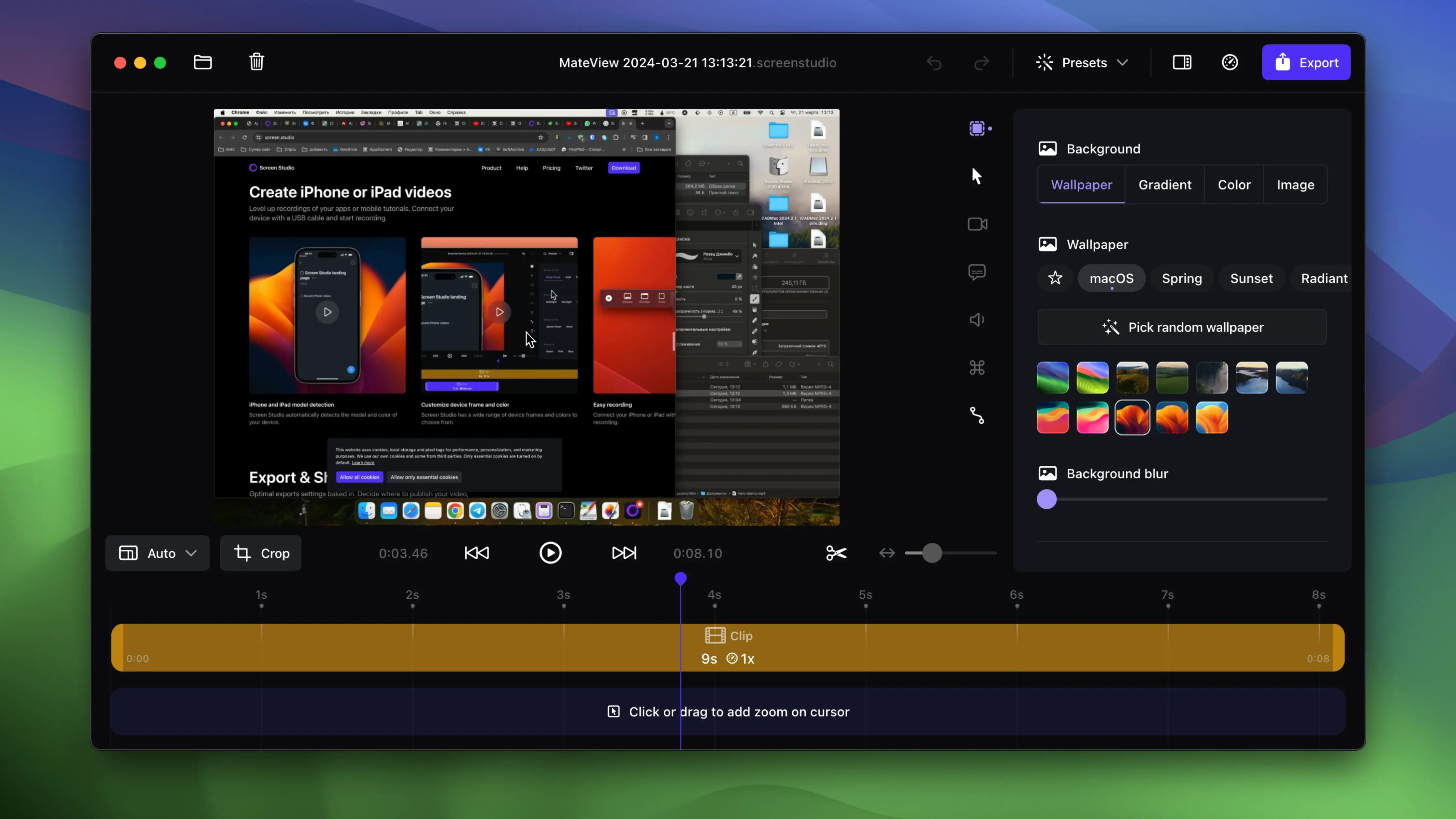
Add Your Own Style and Branding Make your video stand out with your personal brand identity. Change the background, outer spacing, shadow, inset, and much more.
-Background and Spacing Easily change the background or the spacing around your video content.
-Horizontal and Vertical Output With a single click, switch the desired output orientation of your video. All animations will be automatically adjusted accordingly.
-Shadow and Inset To fine-tune subtle visual details, adjust the shadow or inset of your video.
-Cut and Speed Up Easily trim, cut, or speed up specific parts of your recording.
Easy Recording. Simple yet powerful. The screen studio app can record virtually anything on your Apple computer or any connected device running macOS.
Add Webcam, Microphone, and Audio Video tutorials, presentations, tips and tricks. All of them benefit greatly from webcam video, voice narration, and system audio. Screen Studio makes it incredibly easy to add all of them to your videos.
-Add and Customize Your Selfie Your selfie overlay is placed on the video and slightly reduced in size so it does not obstruct the mouse cursor.
-Audio Enhancements Voice volume is normalized, and background noise is automatically removed for cleaner audio output.
-Transcript Generation Generate a transcript of your video and add it as subtitles. Everything happens locally on your Mac computer, and no data is sent to any external servers.
-System Audio Recording Record system audio from all of your applications or only from selected ones. Creating audio-based tutorials has become much simpler and more straightforward.
Create Videos for iPhone or iPad Elevate your app recordings or mobile guides to a professional level. Connect your device using a USB cable and start recording directly from your Mac.
-iPhone and iPad Model Detection Screen Studio automatically detects the model and color of your connected device.
-Customize Device Frame and Color Screen Studio offers a wide selection of device frames and colors for you to choose from.
-Simple Recording Connect your iPhone or iPad using a USB cable and begin recording right away.
Export and Share. Smoothly and Easily. Optimal export settings are built in from the start. Simply decide where to publish your video, and Screen Studio will configure all the technical settings for you automatically.
-Export Presets Export for the web, social media platforms, or further editing in another video editor. Optimal settings are selected automatically for each scenario.
-Video and GIF Export Export your videos in resolutions up to 4K and 60 frames per second, or as highly optimized GIF files for quick sharing.
-Copy to Clipboard Copy the video to your clipboard and paste it into any other application for quick and instant sharing. You can post it on social media or in a chat conversation.
-Share Links Share your video with anyone by generating a shareable link.
More Features:
Screen Studio is packed with a wide range of useful features, and we strive to keep it simple to use and visually beautiful on Mac.
-Motion Blur Movement in your videos will look more natural and cinematic. The resulting videos look like the output of a professional video editing suite.
-Shared Presets Save your video settings as a preset and share them with friends or colleagues so that all your videos maintain a consistent look and feel.
-Keyboard Shortcut Recording If you are recording a tutorial or guide, Screen Studio can capture your keyboard shortcuts and display them directly in your video.
-Crop Your Recording Focus on a specific part of the screen or hide certain parts of the user interface that you do not want viewers to see.
-Hide Desktop Icons Avoid distractions and keep private files hidden from your viewers during the screen studio download and recording process.
Reviews & Comments
No comments yet. Be the first to share your experience.